Software
PaddleVision
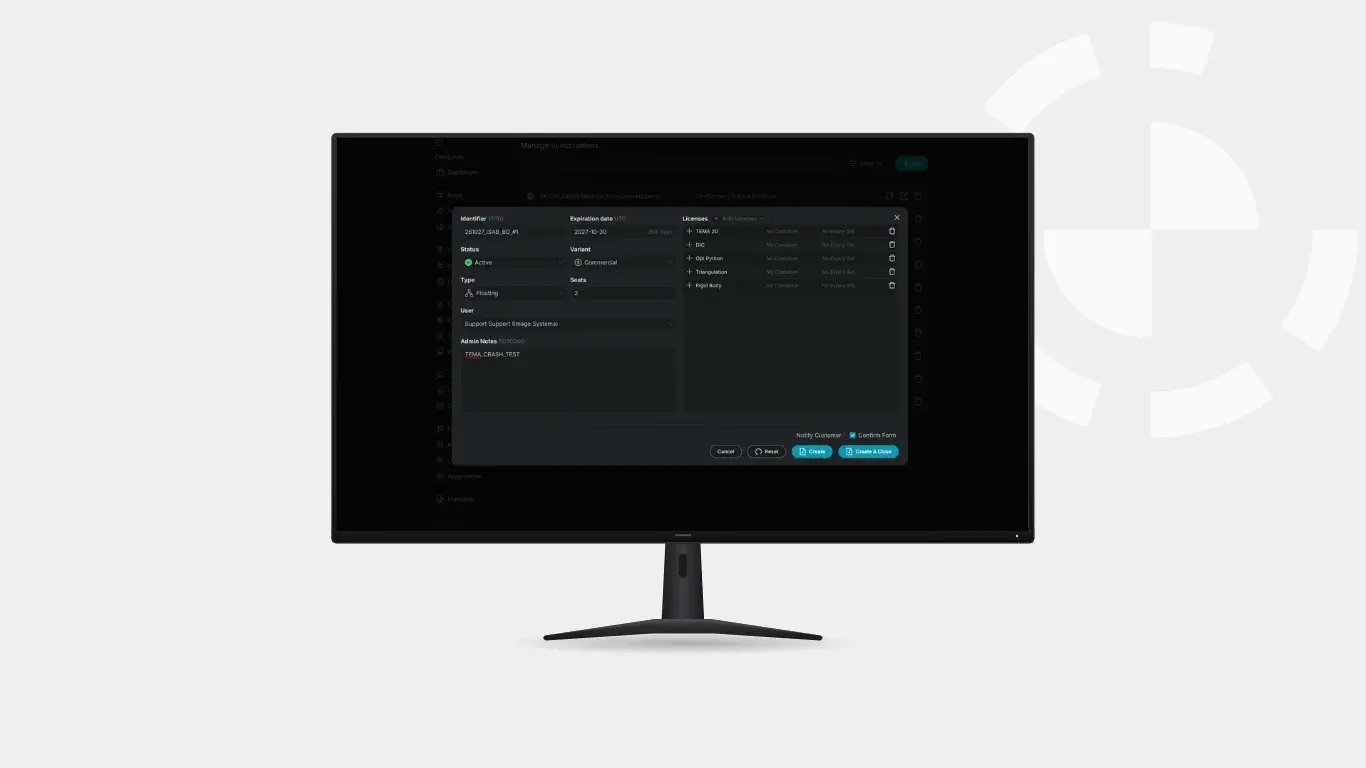

TEMA can be licensed in four ways: standalone on a single computer, on a USB dongle, as a floating license shared from a license server, or through offline activation for networks with no internet access. All four are managed in TEMA Connect.
This guide is for lab managers and IT teams deciding which setup fits their lab. It covers how each option works and where each one makes sense.
| Your situation | Recommended license |
|---|---|
| One dedicated analysis workstation | Standalone on the computer |
| One license used on different workstations at different times | Standalone on a dongle |
| A team sharing a pool of seats on the same network | Floating license |
| Isolated, air-gapped or classified network | Offline activation |
Offline activation is a way of activating a license, not a separate license type. It can be used with a standalone or floating setup on a network that has no internet access.
Licenses are managed in TEMA Connect, available on the web and as a desktop app. In TEMA Connect you can see which modules are assigned to your account and which are ready to activate. When activating, you choose where the license is stored: on a computer or on a dongle.
Select the modules you want, click Activate and choose the computer. The license is stored on that machine.
This is the simplest setup and suits labs where one person or one station does all the analysis, always on the same computer. The license is tied to that computer, so it needs to be moved if the workstation is replaced.
During activation, choose the dongle instead of the computer. The license is stored on the dongle and goes wherever it goes.
This suits labs with one license that’s used at different workstations, for example in the lab and at a test site. Only the computer the dongle is plugged into can use the license, so the dongle needs to be kept track of like any physical key.
A floating license is activated once on a license server and shared by several users on the same network. The server can be any stable Windows computer that stays online when people need TEMA. Client computers install TEMA but don’t activate anything locally. When a user starts a TEMA application, a license is checked out from the server automatically and returned when they’re done.
Setup is quick for IT. Network licensing is enabled on the server, one firewall port is opened if needed, and each client is pointed at the server.
Floating licenses suit teams where several people need TEMA, but not all at once. A shared pool of seats usually covers a team with fewer licenses than one per person. Clients do need network access to the license server, and if the server is offline, they can’t check out a license.
Some test environments have no internet connection by design. TEMA can be activated offline by using a second, online computer as a go-between. A few small files are moved between the two machines on removable media such as a USB drive, and nothing on the offline machine ever connects to the internet.
Does TEMA need an internet connection to run?
No. Internet access is only needed to activate a license, and offline activation removes even that requirement. With a floating license, client computers need access to the license server on the local network, not to the internet.
Do client computers need their own activation with a floating license?
No. Only the license server is activated.
What are the requirements for a TEMA license server?
A Windows computer that is stable and online whenever users need TEMA. It doesn’t need to be a dedicated server.
Can TEMA be used on a classified or air-gapped network?
Yes. Offline activation works without the offline machine ever connecting to the internet, and the TEMA Bundle installer includes everything needed to install it.
Talk to our team and we'll help you choose.